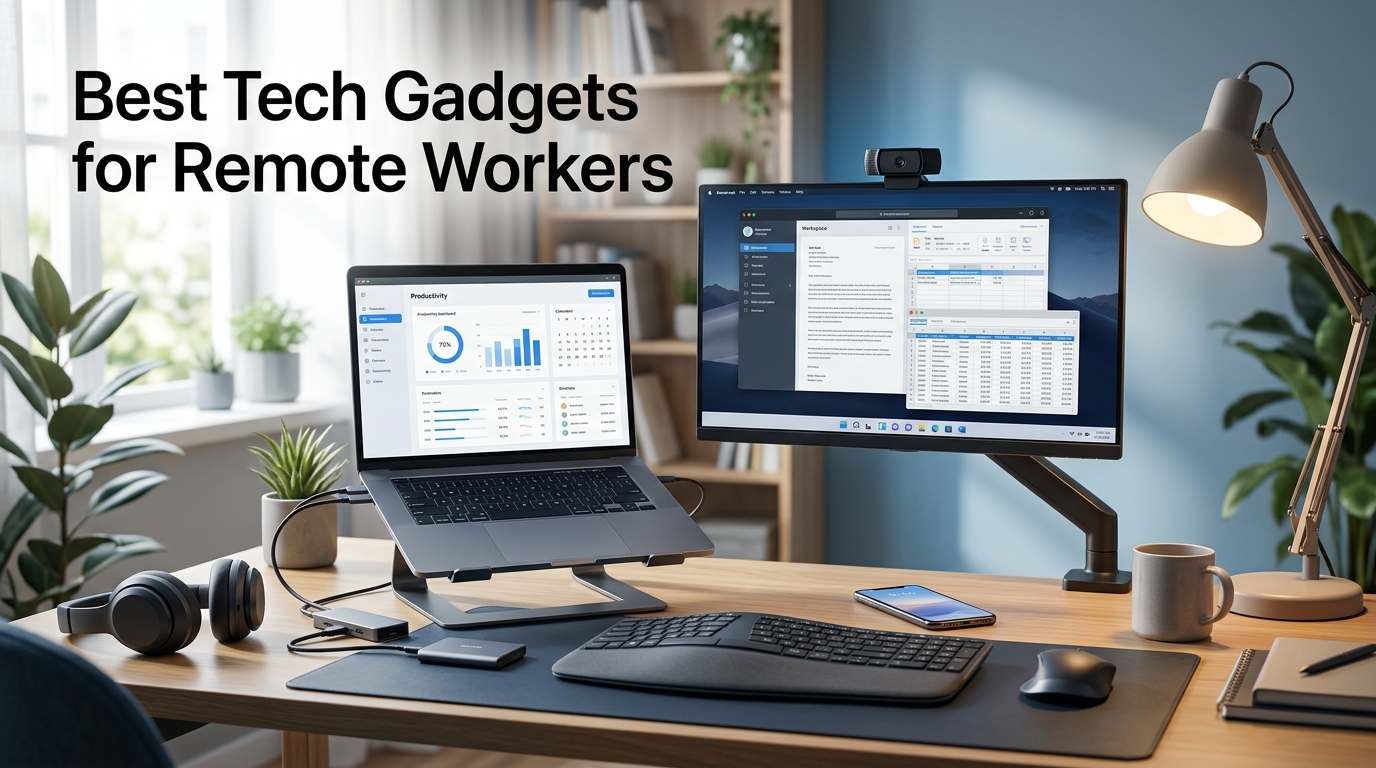
Remote work does not necessarily require an expensive desk covered with the latest technology. In many cases, the most useful gadgets are the ones that solve a small problem you deal with every day.
Maybe your laptop screen feels too cramped. Your video calls sound unclear. Your Wi-Fi drops during important meetings. Or you spend hours looking down at a laptop because it is sitting directly on the desk.
The right technology can make these everyday frustrations easier to manage.
Instead of looking for a universal list of the “best” remote-work gadgets, it makes more sense to build your setup around how you actually work. A developer may benefit most from a large monitor and fast storage, while a freelancer who works from cafés may care more about portability, battery life, and noise cancellation.
Here are the most useful tech categories to consider when building or upgrading a remote-work setup.
1. External Monitor: Give Yourself More Screen Space
One of the easiest ways to improve a laptop-based workstation is adding an external monitor.
Working from a small laptop screen often means constantly switching between documents, browser tabs, spreadsheets, communication apps, and other windows. A second screen gives you more room to keep important information visible at the same time.
For many remote workers, a 24- to 27-inch monitor is a practical starting point. QHD or 4K resolution can provide a sharper workspace, while height adjustment is particularly useful for getting the display into a comfortable position.
A monitor with USB-C connectivity and power delivery can also simplify a laptop setup by combining display and charging through one cable.
However, bigger is not automatically better. A poorly positioned large monitor can create its own comfort problems. OSHA recommends keeping the primary monitor directly in front of you, with the top of the screen at or slightly below eye level.
Best for: Developers, designers, writers, analysts, spreadsheet-heavy workers, and anyone who regularly works with multiple windows.
2. Laptop Stand: A Small Upgrade With a Big Difference
If you work primarily from a laptop, a laptop stand can be one of the simplest improvements you can make.
The problem is straightforward: when your laptop sits flat on a desk, you often have to look downward toward the screen. Raising the laptop closer to eye level can create a more comfortable viewing position.
There is one important catch. Once the laptop is elevated, its built-in keyboard is no longer in an ideal position for extended typing.
That is why a laptop stand works best when combined with a separate keyboard and mouse.
You do not need an expensive stand either. Look for a stable base, adjustable height or angle, non-slip feet, adequate ventilation, and compatibility with your laptop’s size and weight.
Best for: Laptop-first workers, small home offices, students, freelancers, and people who frequently change work locations.
3. Wireless Keyboard and Mouse: Move Beyond the Trackpad
A separate keyboard and mouse can make a laptop-based workstation much more comfortable and flexible.
A wireless keyboard allows you to position your laptop at a better viewing height while keeping the keyboard at a comfortable typing position. A dedicated mouse can also be more practical than a trackpad for spreadsheets, coding, design work, editing, and long documents.
Features such as multi-device switching, rechargeable batteries, comfortable key travel, programmable buttons, and USB-C charging can be useful depending on your workflow.
For example, Logitech’s MX Keys S is designed for multi-device productivity, while the MX Master 3S includes customizable controls and an 8,000-DPI sensor.
But you do not need premium peripherals just because they have impressive specifications. Comfort and fit matter more than having the highest DPI or the most expensive keyboard.
Best for: Writers, developers, designers, analysts, and anyone who spends several hours typing or navigating a computer every day.
4. Noise-Cancelling Headphones or a Headset
Remote work does not always happen in a perfectly quiet home office.
Family members, roommates, traffic, construction, cafés, and shared workspaces can all create distractions. Noise-cancelling headphones can help reduce some of that background noise and make focused work easier.
Active noise cancellation is particularly effective against steady, low-frequency sounds such as engines or HVAC systems. It is less effective against every nearby conversation.
If your work involves frequent meetings, consider the microphone just as carefully as the headphones themselves. A business headset with a good microphone can sometimes be more practical than premium headphones designed primarily for music.
Premium ANC headphones can become expensive. Sony’s WH-1000XM6, for example, launched at $449.99 and includes features such as multiple microphones, adaptive noise cancellation, Bluetooth connectivity, USB-C, and a wired connection.
Best for: Meeting-heavy workers, people in shared homes, travelers, freelancers working from cafés, and anyone easily distracted by background noise.
5. Webcam: Look Better on Video Calls
Laptop webcams have improved, but an external webcam can still make sense if you spend much of your day on Zoom, Microsoft Teams, Google Meet, or client calls.
A good webcam should provide reliable autofocus, sensible framing, decent low-light performance, and a privacy shutter.
For most business meetings, 1080p is enough. A 4K webcam can be useful for creators, presenters, trainers, or people who frequently crop or record video.
For example, Logitech’s MX Brio supports 4K at 30 fps and 1080p at 60 fps.
However, there is an important point that is easy to overlook: lighting often matters more than resolution.
A 4K webcam in a dark room may produce a worse-looking image than a basic 1080p webcam positioned in front of good lighting.
Best for: Remote managers, recruiters, teachers, consultants, presenters, freelancers, and people who regularly meet clients online.
6. USB-C Hub or Dock: Make Your Desk Easier to Connect
Modern laptops are becoming thinner, but that often means fewer ports.
If you want to connect an external monitor, keyboard, mouse, Ethernet cable, storage drive, and other accessories, constantly plugging and unplugging individual cables can quickly become frustrating.
A USB-C hub can add essential ports, while a docking station is better suited to a permanent workstation with several connected devices.
Depending on the model, you may get HDMI, DisplayPort, USB-A, USB-C, Ethernet, SD card slots, and laptop charging through a single connection.
But there is a major buying trap: USB-C does not automatically mean the same capabilities on every device.
Before buying a hub or dock, check your laptop’s USB-C or Thunderbolt capabilities, external-display limits, charging requirements, operating-system compatibility, and the specifications of your monitor.
Best for: Developers, designers, laptop-based workers, hybrid employees, and anyone who wants a one-cable desk setup.
7. Portable SSD: Keep Large Files Within Reach
A portable SSD is especially useful if your work involves large files.
Designers, video editors, photographers, developers, and freelancers handling client projects can use an external SSD for project files, transfers, local backups, and moving work between computers.
Samsung’s T7 Shield, for example, advertises USB 3.2 Gen 2 connectivity with rated read speeds up to 1,050 MB/s and write speeds up to 1,000 MB/s. It also offers IP65-rated protection and hardware encryption.
Still, an SSD should not be your only backup.
If an important project exists on your laptop and one external drive, losing or damaging those devices could still mean losing the work. A separate backup such as another drive or a reliable cloud backup system adds another layer of protection.
Best for: Developers, designers, photographers, video editors, consultants, and freelancers handling large files.
8. Desk or Video-Call Light
Good lighting can make a surprisingly noticeable difference to a remote-work setup.
A desk lamp can make reading and writing more comfortable, while a small front-facing video light can improve your appearance during calls.
Look for adjustable brightness, adjustable color temperature, glare control, and a stable base or clamp.
If a window is behind you during video calls, your face may appear dark. Moving the light source in front of you can often make a bigger difference than purchasing a more expensive webcam.
Best for: Meeting-heavy professionals, workers in dim rooms, and people who frequently appear on camera.
9. Portable Monitor for People Who Work Everywhere
A desktop monitor is great when you have a dedicated workspace. But what if you regularly work from hotels, cafés, coworking spaces, or client offices?
That is where a portable monitor can be useful.
These displays are generally lightweight and designed to connect to a laptop, often through USB-C. They give you additional screen space without requiring a permanent desk setup.
A 13- to 16-inch portable display can be enough for keeping email, documentation, communication tools, or reference material open beside your main work.
The trade-off is that portable monitors are usually smaller and may be less bright than desktop displays. Your laptop also needs to support video output through the relevant USB-C connection.
Best for: Freelancers, consultants, travelers, students, and hybrid workers.
10. Power Bank or GaN Charger
Working remotely sometimes means working away from a power outlet.
A compact GaN charger can reduce the number of chargers you need to carry, while a suitable power bank can keep phones, tablets, headphones, and in some cases laptops running while traveling.
When choosing one for a laptop, pay attention to USB-C Power Delivery wattage, not just battery capacity.
Some laptops may require 65W, 90W, 100W, or more depending on the workload and charging system.
Also remember that large batteries can be subject to airline restrictions, so frequent travelers should check their airline’s current rules before flying.
Best for: Travelers, freelancers, field workers, digital nomads, and people who regularly work away from a desk.
11. Upgrade Your Wi-Fi or Use Ethernet
Sometimes the gadget you need most is not a new webcam or monitor it is a more reliable internet connection.
Dropped calls, slow cloud syncing, unstable VPN connections, and interrupted uploads can make remote work frustrating.
For a fixed home workstation, Ethernet is often the simplest way to create a stable connection if running a cable is practical.
If Wi-Fi coverage is the actual problem, you may need to look at your router placement, a newer router, or a mesh Wi-Fi system.
Modern Wi-Fi standards such as Wi-Fi 6, Wi-Fi 6E, and Wi-Fi 7 can provide useful improvements, but buying a faster router does not automatically fix a slow internet plan or poor coverage.
Best for: Meeting-heavy workers, large households, people with dead zones, and anyone regularly transferring large files.
Build Your Setup Around the Problem
The biggest mistake when buying remote-work gadgets is starting with the product instead of the problem.
Instead, ask yourself what is slowing you down.
| Your problem | Consider starting with |
|---|---|
| Laptop screen is too low | Laptop stand + keyboard/mouse |
| Constantly switching windows | External monitor |
| Working while traveling | Portable monitor + compact hub |
| Noisy environment | ANC headphones/headset |
| Poor video-call quality | Better lighting + webcam |
| Too many cables | USB-C hub or dock |
| Large files | Portable SSD + backup |
| Unstable connection | Ethernet or network upgrade |
| Working without outlets | USB-C charger/power bank |
| Dim workspace | Adjustable desk light |
This approach also prevents unnecessary spending. You may discover that a $30–$50 accessory solves your actual problem better than a much more expensive gadget.
Ergonomics Matter More Than a Gadget Collection
A high-tech desk is not automatically a comfortable desk.
OSHA recommends positioning the primary monitor directly in front of the user, with its top at or slightly below eye level. It also recommends keeping the shoulders relaxed, elbows close to the body, wrists aligned with the forearms, and feet supported.
Mayo Clinic similarly recommends keeping the monitor roughly an arm’s length away and positioning the keyboard so the wrists and forearms remain aligned.
Movement matters too. OSHA recommends changing positions, making small adjustments, stretching, and periodically standing or walking rather than remaining in exactly the same position all day.
So instead of trying to create a perfectly engineered workstation, focus on making your setup adjustable and comfortable for the work you actually do.
Example Setups for Different Remote Workers
Small Home Office
If you have limited space, you do not need two monitors and a huge docking station.
A laptop stand, compact keyboard and mouse, one 24- or 27-inch monitor, a small USB-C hub, and a clamp-on light can create a capable workstation without taking over the room.
Freelancer
Freelancers who move between home, cafés, and client locations should prioritize portability.
A lightweight laptop, compact hub, ANC headphones, portable SSD, compact charger, and optional portable monitor can provide a flexible setup without carrying an entire office in a backpack.
Developer or Designer
Developers and designers often benefit from more screen space, accurate input devices, fast storage, and reliable connectivity.
A larger QHD or 4K display, comfortable keyboard, productivity mouse, suitable dock, Ethernet connection, and portable SSD can make more sense than spending heavily on accessories that do not affect the actual workflow.
Meeting-Heavy Professional
If most of your day consists of video calls, focus on the complete communication chain.
A decent 1080p webcam, good front-facing lighting, a reliable headset, stable internet, and a well-positioned monitor can make a bigger practical difference than simply buying the highest-resolution camera available.
The best tech gadgets for remote workers are not necessarily the newest, most expensive, or most impressive-looking products.
The right gadget is the one that removes a recurring problem from your workday.
A laptop stand can solve an awkward screen position. An external monitor can reduce constant window switching. A headset can make noisy environments easier to manage. A USB-C dock can eliminate cable clutter. A portable SSD can simplify large-file workflows, while a reliable network connection can prevent an important meeting from falling apart.
The smartest approach is to identify your biggest bottleneck first, then buy the technology that addresses it.
You do not need a perfect home office. You need a setup that supports the way you actually work.